

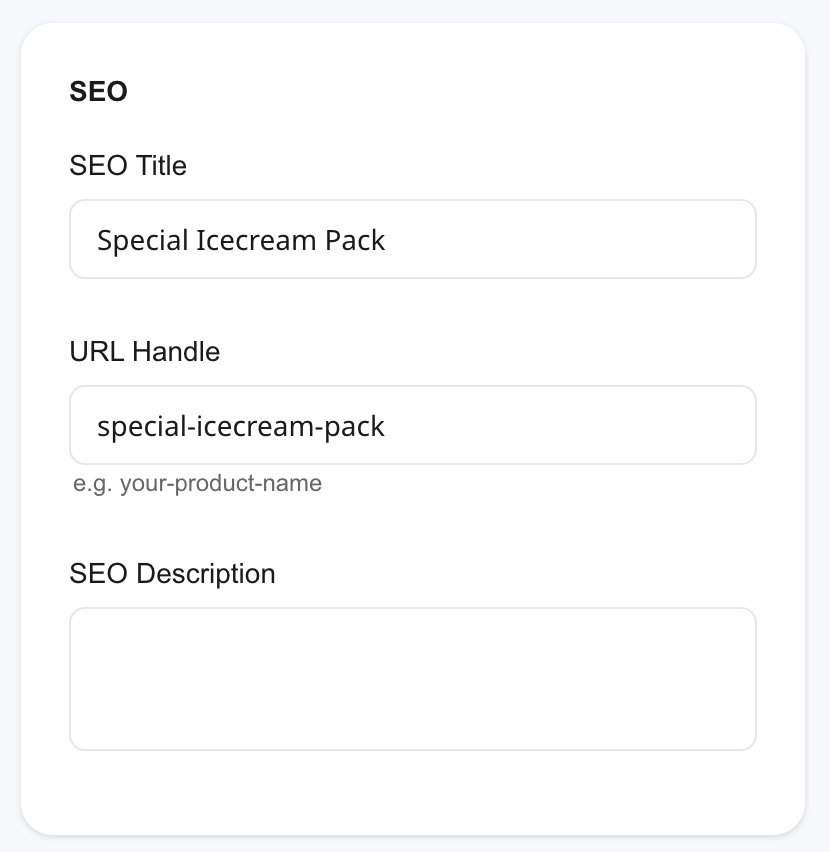
Shoopy product SEO lives in a small SEO card in the right column of the product form. In short, you set an SEO Title, a URL Handle, and an SEO Description — that’s it. Also, Shoopy auto-fills the SEO Title and URL Handle from the product name as you type, so a basic product is already SEO-ready before you even open the SEO card.
For a live Shoopy storefront with SEO-friendly product URLs, see www.instaecart.com. For adding a product end-to-end, see Adding a product in Shoopy.
Before you begin #
- First, sign in at
web.shoopy.in. For details, see Logging in with OTP. - Also, your role must allow catalog edits. In short, Owner, Admin, Catalog Manager, Marketing Manager, or Billing Manager can edit SEO.
- However, Location Admins can view but not edit SEO.
- Finally, every Shoopy plan — including Free — unlocks all three SEO fields. So, no upgrade needed.
Shoopy product SEO fields at a glance #
| Field | Auto-fills from name? | What it controls |
|---|---|---|
| SEO Title | Yes (verbatim) | The clickable headline in search results and the browser tab title |
| URL Handle | Yes (slugified) | The last segment of the product URL, e.g., /products/blue-cotton-shirt |
| SEO Description | No | The snippet shown under the title on Google |
So, the most common workflow is: type the product name → open the SEO card → tweak the three fields if needed → save.
Opening the SEO card #
- Open Catalog → Products.
- Click the product you want to edit, or start a new product with + Add Product.
- In the right column of the form, find the SEO card. Three fields appear: SEO Title, URL Handle, and SEO Description.
- Edit the fields and click Save at the top of the form.
Therefore, the updated SEO applies to the next search-engine crawl and the next share of that product’s URL.
SEO Title #
The SEO Title is what appears as the blue clickable headline on Google. Also, it becomes the browser tab title when a shopper opens the product page.
- Auto-fill: As you type the product name, Shoopy copies it into SEO Title. So, you can leave it alone for plain catalog items.
- When to edit: Override the auto-fill when you want to lead with a search-worthy phrase. For example, “Cotton Shirt for Men — Blue, Slim Fit” works better than the bare product name “Blue Slim Fit Men Cotton Shirt” because shoppers often type “cotton shirt” first.
- Recommended length: Aim for roughly 50 to 60 characters. Google truncates longer titles in the search snippet, so the tail of the title can get cut off.
URL Handle #
The URL Handle is the last segment of the product page URL. For example, with handle blue-cotton-shirt, the final URL becomes yourstore.com/products/blue-cotton-shirt.
The helper text under the field reads “e.g. your-product-name” as a quick reminder of the expected shape.
How URL Handle is built #
- Auto-fill from name. As you type the product name, Shoopy generates the URL Handle automatically — lowercased, with spaces converted to hyphens, and any special characters removed. So, typing “Blue Cotton Shirt!” produces
blue-cotton-shirt. - Edit freely. You can clear the auto-filled handle and type your own at any time. However, Shoopy still applies the same normalisation rules on save.
- Recommended shape. Keep the URL Handle short — three to five words — and skip stop words like “the”, “a”, or “of” so the URL stays readable.
Changing an existing URL Handle #
Shoopy lets you change a saved URL Handle. However, any link — email newsletter, social post, paid ad — that uses the old URL will hit a dead page unless you set up a redirect. So, pick a URL Handle early and avoid changing it after the product is shared.
SEO Description #
The SEO Description is the gray snippet that Google shows below the title in search results. In short, it is your one-line pitch to convince the shopper to click.
- Multi-line input. The field is a small text box — paste in two or three sentences and they will all appear in your stored SEO data.
- Recommended length: Aim for roughly 150 to 160 characters. Search engines truncate longer descriptions in the snippet, so put the most important pitch up front.
- Blank behaviour: If you leave SEO Description blank, search engines may auto-excerpt from your product page content. So, filling this field is optional but recommended.
Tip: Include one or two keywords that a shopper would type, plus one benefit (material, size, warranty). Then, the description reads naturally and matches search intent.
Variants and SEO #
Variants (size, colour, and similar) share the parent product’s SEO settings. In short, the parent’s SEO Title, URL Handle, and SEO Description apply to every variant. For variants, see Shoopy product variants.
Therefore, when writing SEO copy, write for the parent product as a whole — not one specific variant — so every variant page ranks on the same terms.
Tips for Shoopy product SEO #
- Trust the auto-fill for plain catalog items. A clear product name already produces a usable SEO Title and URL Handle.
- Override SEO Title when ranking matters. Lead with the most search-worthy words (for example, “Cotton Shirt” before brand or colour).
- Write the SEO Description in plain language. Keyword-stuffed descriptions rank worse, not better.
- Skip stop words in the URL Handle. So,
blue-cotton-shirtbeatsthe-best-blue-cotton-shirt. - Pick the URL Handle once. Renaming after a product is shared breaks every existing link unless you add a redirect.
- Bulk CSV does not carry SEO fields. For details, see Shoopy bulk product upload via CSV. Also, plan to fill SEO in the SEO card after a CSV import.
Troubleshooting #
My SEO Title doesn’t show up on Google yet #
Google crawls on its own schedule. So, expect hours to days before a fresh title appears. Also, check that the product is published and not hidden — hidden products are not indexed.
My SEO Title and URL Handle changed by themselves #
That is the auto-fill — Shoopy copies the product name into SEO Title and a slugified version into URL Handle while you edit the name. So, the easiest fix is to finish typing the name first, then open the SEO card and override the two fields.
My typed URL Handle looks different after save #
Shoopy normalises URL Handles on save — lowercase only, hyphens for spaces, and special characters removed. Therefore, what you type is not always what Shoopy stores. Review the URL Handle after save to make sure it reads well.
Shoppers land on a 404 after I change the URL Handle #
The old URL is dead unless you add a redirect. In short, avoid changing a URL Handle once it is widely shared. So, rename carefully and add a redirect rule under Store Settings if available on your plan.
Two products end up with the same URL Handle #
Two products on the same store cannot share the same URL Handle. So, add a distinguishing word — a size, a material, or a year — to the second product’s URL Handle. For example, use blue-cotton-shirt-slim instead of blue-cotton-shirt.
Related articles #
- Adding a product in Shoopy
- Shoopy product variants
- Product images and video in Shoopy
- Shoopy bulk product upload via CSV
- Pricing, MRP, tax, and HSN in Shoopy
- Glossary of Shoopy terms
Category: Products & Catalog · Author: Shoopy Team · Last reviewed: 2026-04-25