

Shoopy product images and video sit in two spots on the product form. In short, you upload up to six photos in the Product Images block, drag to reorder, and paste one YouTube link into the YouTube Video Link field further down. Also, Shoopy resizes and compresses each image automatically so storefront pages stay fast.
For a live Shoopy storefront showing rich product imagery, see www.instaecart.com. For adding a product end-to-end, see Adding a product in Shoopy.
Before you begin #
- First, sign in at
web.shoopy.in. For details, see Logging in with OTP. - Also, your role must allow catalog edits. In short, Owner, Admin, Catalog Manager, Marketing Manager, or Billing Manager can upload images.
- However, Location Admins can view but not upload product media.
- Finally, images upload on every plan — including Free. However, the YouTube Video Link field requires the Basic plan or higher.
Shoopy product image specs at a glance #
| Spec | Value |
|---|---|
| File types | JPG, PNG, WebP, GIF |
| Max file size | 2 MB per image (after crop / resize) |
| Max images per product | 6 by default; your plan may allow more |
| Dimension limit | Auto-resized to 1920 px on the long edge |
| Reorder | Drag thumbnail to new position |
| First image | Becomes the featured image on the storefront |
| Variant images | Supported — each variant can override |
| Bulk upload via CSV | Not supported — images are uploaded on the product form |
Uploading Shoopy product images #
- Open the product form. Either + Add Product or Catalog → Products → Edit on an existing row.
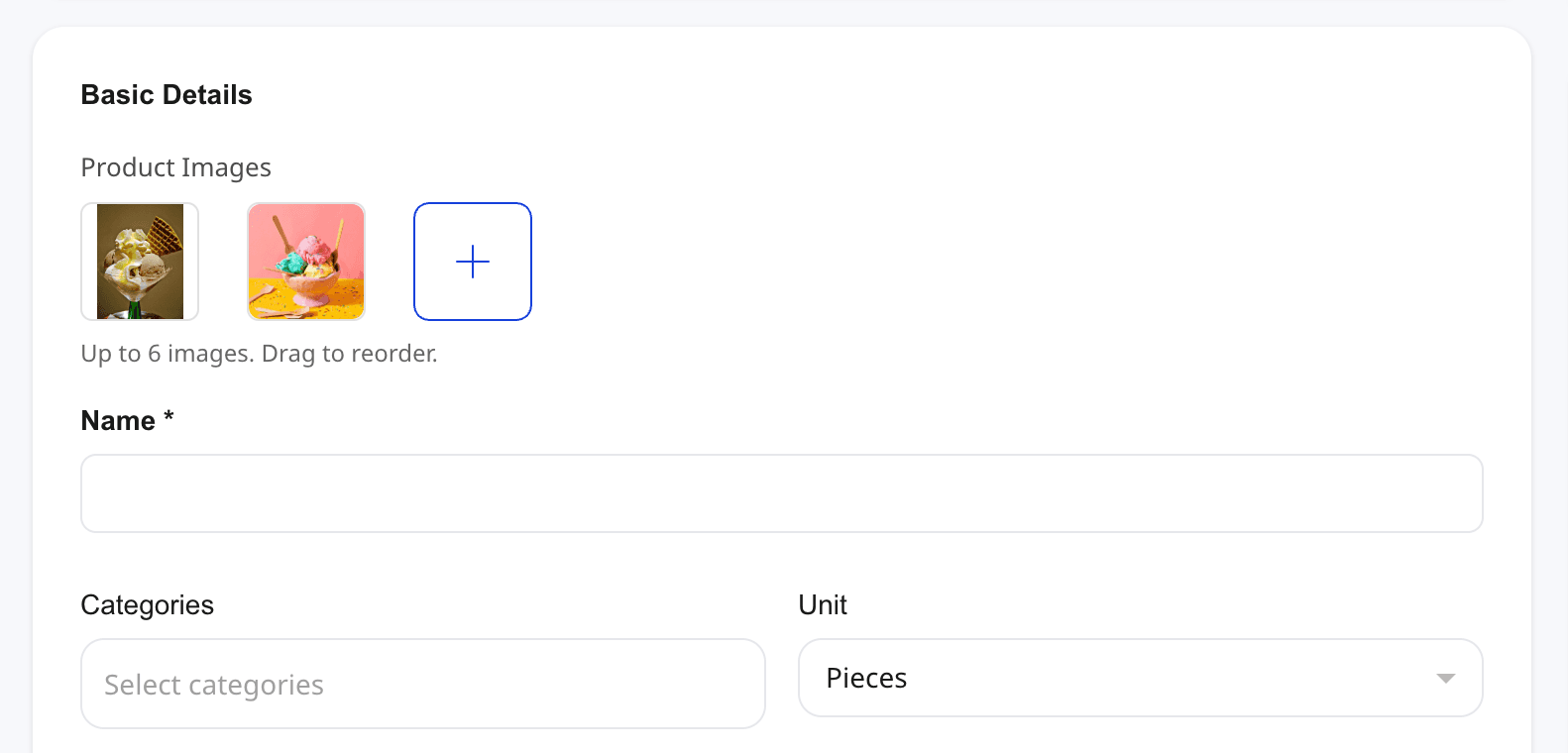
- Find the Product Images block at the top of the Basic Details card.
- Click the + tile (or drag files onto it). Select one or more images from your computer.
- Shoopy compresses each image, shows a thumbnail, and places it in the grid.
- Click Save Product.
Therefore, the uploaded images show up on the product card and product detail page on your storefront immediately after save.
Supported file types #
Shoopy accepts JPG, PNG, WebP, and GIF. So, the standard formats a camera or phone produces all work. Also, WebP is the leanest option for large catalogues.
File size limit #
Every image must be 2 MB or smaller after Shoopy’s auto-resize. In short, if your phone photo is 8 MB, Shoopy shrinks the long edge to 1920 px, re-encodes, and usually lands well under 2 MB. However, an image that stays above 2 MB even after resize errors with “Image size is more than 2MB, kindly remove or crop the image.” Therefore, if you see that message, crop the image tighter before re-uploading.
Image count #
The default is 6 images per product — Shoopy prints “Up to 6 images. Drag to reorder.” just under the grid. Also, some Shoopy plans raise this limit — check that same hint on your store to confirm the current max.
Crop and aspect ratio #
When you upload an image, Shoopy opens a crop dialog. Then, you can keep the original dimensions or pick an aspect ratio:
- Original — no crop applied
- 1 : 1 — square (best for storefront grids)
- 3 : 4 — vertical (product-on-model shots)
- 4 : 3 — horizontal
- 16 : 9 — wide landscape
- 9 : 16 — tall (mobile-first)
- Custom — drag the handles freely
So, pick one ratio and apply it across the catalogue for a consistent storefront grid.
Tip: Square (1 : 1) is the most common choice — it fits neatly on both desktop and mobile product cards without awkward cropping.
Drag to reorder Shoopy product images #
The first image in the grid is the featured image — it’s what the shopper sees on the product card and as the default image on the product detail page. So, to change the featured image:
- Hover over any thumbnail.
- Click and hold, then drag it to the first slot.
- Release.
Then, Shoopy remembers the new order after Save.
Deleting and replacing an image #
To remove an image, hover the thumbnail and click the small × icon on the top-right corner. The slot clears and Shoopy re-packs the grid. Also, the change persists only after you click Save Product.
To replace an image, delete the old one, then upload the replacement. In short, Shoopy does not swap in place — delete and re-upload is the flow.
Shoopy product video — the YouTube Video Link field #
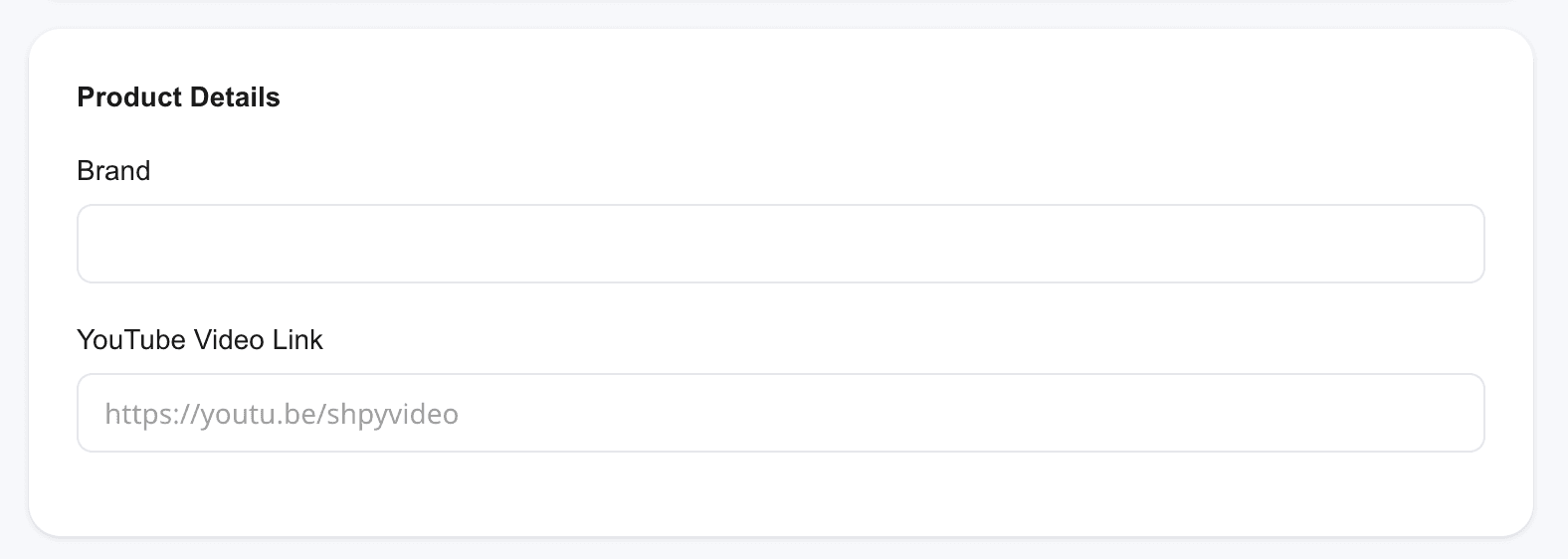
Further down the product form, in the Product Details card, Shoopy shows a single YouTube Video Link field with the placeholder https://youtu.be/shpyvideo. Paste a full YouTube link and the storefront plays the video inline on the product detail page.
What goes in the field #
Any public YouTube link format works:
https://www.youtube.com/watch?v=abc123def45https://youtu.be/abc123def45https://www.youtube.com/embed/abc123def45
So, the storefront extracts the 11-character video ID and embeds the YouTube player. Therefore, unlisted or private YouTube videos will not load for shoppers — make sure the video is public.
Plan gate #
The YouTube Video Link field is gated to the Basic plan and above. So, on the Free plan the field shows a Paid tag and is locked. Also, upgrading immediately unlocks video on every product — no per-product purchase.
Storefront placement #
Shoopy shows the video as a thumbnail alongside the image grid on the product detail page. Then, tapping it opens an embedded YouTube player. In short, one video per product — not a playlist.
Variant images in Shoopy #
Product variants (size, colour, and similar) can each carry their own image. For variants, see Shoopy product variants.
- Fallback rule: If a variant has no image of its own, it inherits the parent product’s images. So, set up parent images once and override per variant only when a colour or pattern looks meaningfully different.
- Same upload flow: The variant row uses the same Product Images block, same 2 MB limit, and same crop dialog.
Tips for Shoopy product images #
- Shoot square by default. Then, crop to 1 : 1 at upload. Your storefront grid stays tidy.
- Put your best shot first. In short, the first image is the one shoppers see on collection pages. So, lead with the cleanest angle.
- Keep originals. Shoopy resizes to 1920 px on upload. Therefore, keep your full-resolution originals elsewhere in case you need to re-shoot a detail.
- Use WebP for large catalogues. Also, WebP keeps file sizes small without losing sharpness — helpful when you need 6+ photos per product.
- One product video is enough. So, pick the one that shows the product in use rather than a long brand film.
- Images do not bulk-import from CSV. For details on bulk, see Shoopy bulk product upload via CSV.
Troubleshooting #
“Image size is more than 2MB, kindly remove or crop the image.” #
The image is still over 2 MB after Shoopy’s auto-resize. Therefore, either crop it tighter in the dialog, or save a smaller copy from your phone or desktop editor before re-uploading.
“Some Images are rejected, Max 2MB is allowed to upload!” #
You dragged in a batch and at least one file is too large. So, Shoopy accepts the smaller ones and skips the rest. Also, open the skipped files, shrink them, and add them again.
“Provided Image can’t be loaded!” #
The file is corrupt, zero-byte, or not a real image (for example, a renamed .pdf). Therefore, open it on your computer to verify it opens, and try again.
My YouTube video does not play on the storefront #
Check three things:
- The video is public on YouTube (not unlisted or private).
- The URL is a standard YouTube link —
youtube.com/watch?v=...,youtu.be/..., oryoutube.com/embed/.... - You saved the product after pasting the URL.
In short, if all three are fine and the player still doesn’t show, the video ID may be missing or malformed — copy the URL directly from the YouTube share menu.
The image order keeps resetting #
You likely forgot to Save Product after dragging. So, drag, then click Save before leaving the form.
Drag-to-reorder isn’t working #
You’re probably clicking the × icon by mistake instead of the thumbnail body. Therefore, click the middle of the thumbnail — not the corner — then drag.
Related articles #
- Adding a product in Shoopy
- Shoopy product variants
- Shoopy product bundles and multipacks
- Shoopy bulk product upload via CSV
- Pricing, MRP, tax, and HSN in Shoopy
- Glossary of Shoopy terms
Category: Products & Catalog · Author: Shoopy Team · Last reviewed: 2026-04-24