 Shoopy
 Categories — create, nest and reorder
Add a category, nest a subcategory, reorder by drag, edit, hide, and assign products. Step-by-step setup for the Shoopy admin.
Categories are the browsable taxonomy of your store. Every product belongs to one or more categories, and shoppers use those categories to find what they want from the storefront menu. Categories support two levels — a parent and one layer of subcategories — so the structure stays shallow and easy to scan.
For the conceptual difference between categories and collections, see Shoopy categories vs collections. For adding products end-to-end, see Adding a product in Shoopy.
Before you begin
- Sign in at
web.shoopy.ai. For details, see Logging in with OTP. - Your role must allow catalogue edits: Owner, Admin, Catalog Manager, or Marketing Manager can create and edit categories.
- Location Admins can view but not edit categories.
- Every plan unlocks categories — no upgrade is needed.
Opening the Categories page
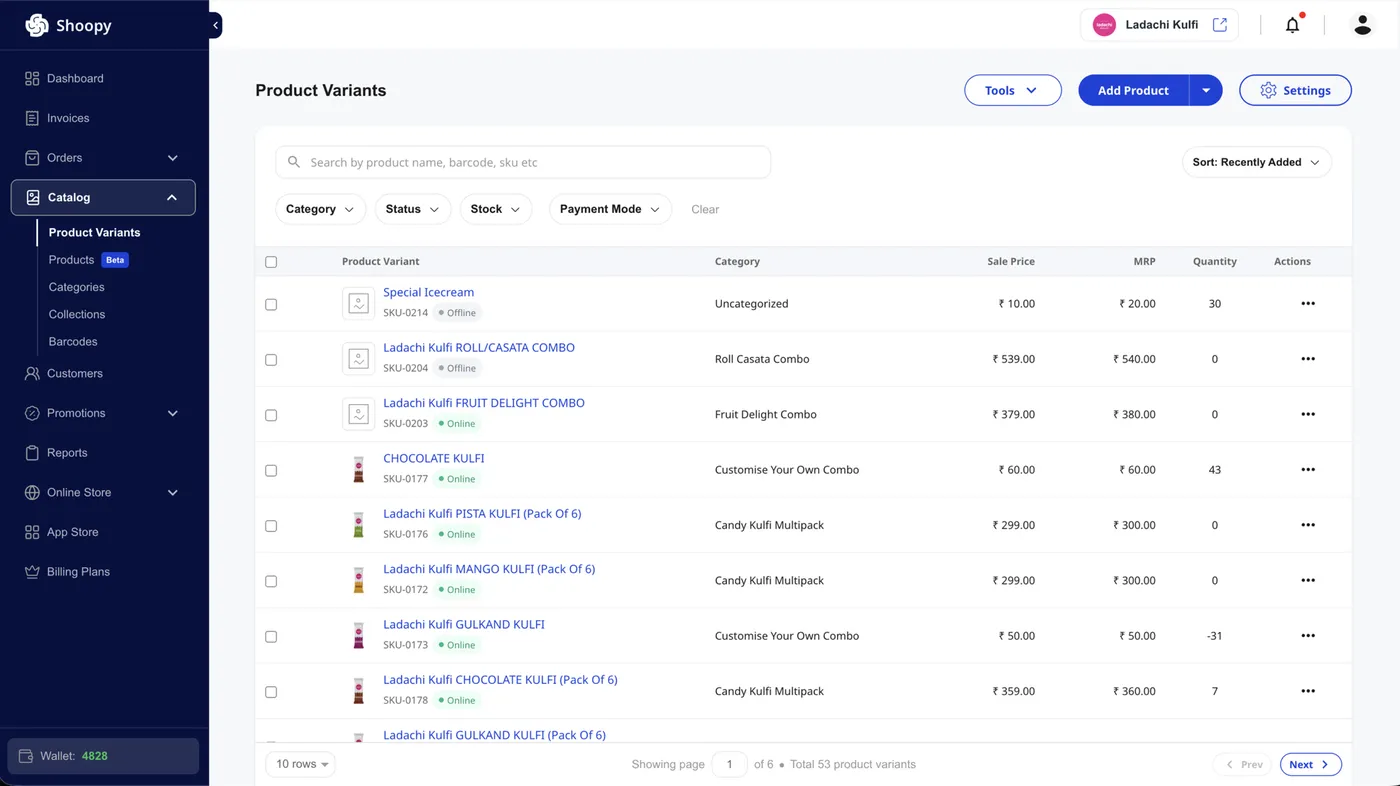
- In the left sidebar, click Catalog to expand it.
- Click Categories. The page opens with the header Category and an Add Category button at the top right.
- If you have not added a category yet, you see the empty state: “Start setting up your product categories”.
Every action below starts from this Categories page.
Adding a parent category
- Click Add Category. The Add Category drawer slides in from the right.
- Upload an Image (optional). The thumbnail shows in the storefront category listing. Format: PNG; max size: 800 KB.
- Enter a Name (required, between 3 and 45 characters). For example,
Apparel,Electronics,Frozen Snacks. - Open the Search Engine Optimization (SEO) Settings section to review the auto-filled SEO fields:
- SEO Title — auto-fills from Name; override if you want a different headline on Google.
- SEO Description — write a short pitch of 155–165 characters.
- URL Slug — auto-fills from Name as a clean lowercase-hyphen handle; you can edit it.
- (Optional) If you have the Google Merchant Center app installed, pick a Google Merchant Center (GMC) Category so your products map to the right Google taxonomy when you sync.
- Click Add. The new parent category appears at the bottom of the list.
The live Google preview at the top of the SEO section updates as you type — use it to spot title or description overflow.
Nesting a category — adding a subcategory
Categories nest one level under a parent. To add a subcategory:
- On the Categories page, click the parent category to expand its accordion.
- At the bottom of the expanded section, click + Add Sub Category. The Add Sub Category drawer opens.
- The Parent Category field is pre-selected with the parent you came from — you do not need to pick it again.
- Fill in Image, Name, and the SEO Settings the same way as a parent category.
- Click Add. The subcategory appears nested inside the parent.
Note: Shoopy supports a hard cap of two levels. You cannot nest a sub-subcategory under a subcategory. For deeper splits, use a Collection that pulls from the relevant subcategory, or add a product attribute that shoppers can filter on.
Editing a category
Click the pencil icon on any category row. The drawer opens — Edit Category for a parent, or Edit Sub Category for a subcategory.
- All fields pre-populate. Edit any of them and click Save.
- The Parent Category of an existing subcategory cannot be changed. To move a subcategory under a different parent, delete it and recreate it under the new parent.
- If you change the URL Slug, a checkbox appears: “Create a URL redirect from /{old-slug} → /{new-slug}”. Leave it checked so old links still work.
Reordering categories
Hover any category row. A six-line drag handle appears on the left.
- Parent categories drag at the top level. Drop to reorder.
- Subcategories drag within the same parent. Cross-parent reordering is not supported via drag.
- The new order saves immediately. There is no undo, so re-drag if you misplace one.
The storefront menu reflects the new order on the next page load.
Hiding a category from the storefront
Each row has a visibility toggle on the right. Toggle it off to hide that category from the storefront.
- Hiding a parent category cascades to every subcategory underneath — the toggle on each subcategory becomes disabled with the tooltip “Enable {parent name} to activate subcategory.”
- Hiding does not delete — the category and its products stay in the admin, and you can re-enable any time.
- Hidden categories also remove their products from storefront browse. Hidden parent categories hide every product linked only to those subcategories.
Assigning products to a category
You can attach products to a category from two places:
From the product form (one product at a time): open a product, pick one or more categories in the Categories field, then save.
From the category page (bulk):
- On the Categories page, click View Products on the row.
- The Products in {category name} drawer opens with the current product list.
- Click Assign Products at the top right. The assign sub-drawer opens with all products that are not yet in this category.
- Search by keyword if you have a long catalogue, then select the products with the checkboxes.
- Click Assign ({count}) at the bottom. The selected products attach to this category.
- To remove a product from the category, click the trash icon on the product row in the assigned list. The product itself stays in the catalogue — only the link to this category is removed.
You can also drag products inside the assigned list to set the order shoppers see them in. The sort filter at the top lets you switch between manual order and other sort options.
Deleting a category
Click the trash icon on a category row.
- Subcategories delete immediately on confirm.
- A parent category with one or more subcategories cannot be deleted — the trash icon appears greyed out. Delete every subcategory first, then delete the parent.
Plan deletes top-down: clear the children, then remove the parent.
How categories appear on the storefront
Each category becomes a node in the storefront menu and breadcrumb trail, and gets a dedicated browse page at /categories/{slug} listing every product in it. The thumbnail you uploaded shows next to the category name in any list-style theme.
For SEO on individual products, see Product SEO in Shoopy.
Tips for healthy categories
- Keep the parent list short. Five to ten parents is plenty for most stores. Use broad buckets at the top and let subcategories carry the detail.
- Use the auto-filled URL Slug. The auto-generated slug is already SEO-friendly. Override only if you have a strong keyword reason.
- Fill the SEO Description on every category so search engines get a clear pitch instead of an auto-excerpt.
- Reuse one thumbnail style across categories. A consistent visual makes the menu feel professional; square-format PNGs around 200×200 render best in most themes.
- Audit empty categories. Empty categories clutter the menu and waste shopper attention. Merge or hide them when a product line winds down.
Troubleshooting
“Provided URL slug is already used in a category.”
Two categories on the same store cannot share a URL Slug. Change the Slug to something distinguishing — add a vertical word, a parent prefix, or a year — and save again.
I cannot delete a parent category
The trash icon greys out when a parent has at least one subcategory. Open the parent, delete each subcategory, then delete the parent.
A subcategory’s visibility toggle is disabled
The parent is hidden. Enable the parent first, then toggle the subcategory.
My category does not show up in the storefront menu
Two common causes. First, the category visibility toggle may be off — turn it on. Second, the storefront menu may be set to a custom menu that does not auto-include new categories — check Online Store → Header Menu if a manual menu is in use.
The thumbnail looks blurry on the storefront
Upload a higher-resolution PNG. A 200×200 or larger square renders crisply in every theme. File size is capped at 800 KB.
I want a third level of nesting
Categories cap at two levels. Model the third level as a Collection that pulls from the relevant subcategory, or add a product attribute that shoppers can filter on. For collections, see Building collections in Shoopy.
I changed a slug and shoppers landed on a 404
You probably unchecked the redirect option when editing. Edit the category again, change the slug back briefly, save, then change it forward with “Create a URL redirect” checked. The redirect rule will save this time.