 Shoopy
 Bulk-update stock via CSV
Export your products, edit the quantity column in a spreadsheet, and upload the CSV to push new on-hand counts for many SKUs in one go.
Bulk-updating stock via CSV pushes new on-hand quantities for many SKUs in one upload. When a shipment lands across fifty products, when month-end stocktake reveals a long list of corrections, or when a season change resets dozens of items at once, this is the right tool. The same CSV can update other product fields too — but this guide focuses on the stock workflow, because it is the most common reason merchants reach for it. For the wider stock and order workflow, see orders and inventory.
For single-SKU adjustments, see Update stock quantity. For creating brand-new products from a spreadsheet, see Bulk product upload via CSV.
Before you begin
- Sign in at
web.shoopy.ai— see Logging in with OTP. - Bulk Update is a paid feature. Your store must be on Shoopy’s higher business plan to see the option in the Tools menu; stores on the Basic plan will not see Bulk Update.
- Location Admins do not see Bulk Update — the tool is hidden on location-scoped accounts. Ask your Owner or Admin to run the import for you.
- You need a spreadsheet editor (Excel, Google Sheets, or Numbers) to edit the CSV before uploading it back.
When to bulk-update stock (and when not to)
Bulk Update shines when the change is wide but mechanical.
- Use Bulk Update when you need to refresh the on-hand count for ten or more SKUs at once — a fresh delivery, a stocktake reconciliation, an end-of-season reset.
- Use the per-row Stock In / Stock Out modal when you only have one or two SKUs to adjust. It is faster and gives you a live preview — see Update stock quantity.
- Do not Bulk Update for orders. Online and POS orders deduct stock automatically — only Bulk Update for non-sale movements (deliveries, stocktake, write-offs).
- Do not use this tool to add new products. Bulk Update edits existing SKUs. For new SKUs, use Bulk product upload via CSV instead.
How to bulk-update stock from the Tools menu
The Bulk Update tool lives behind the Tools dropdown on the Products list.
- In the left sidebar, click Catalog, then click Products.
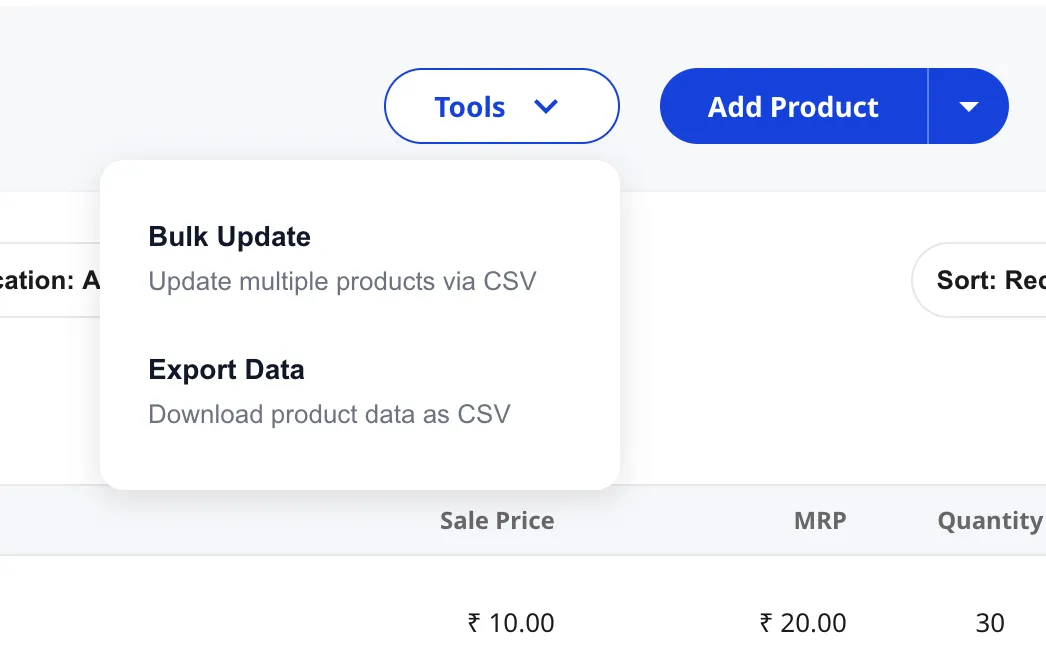
- In the top-right of the Products page, click Tools. A small dropdown opens with two items: Bulk Update and Export Data.
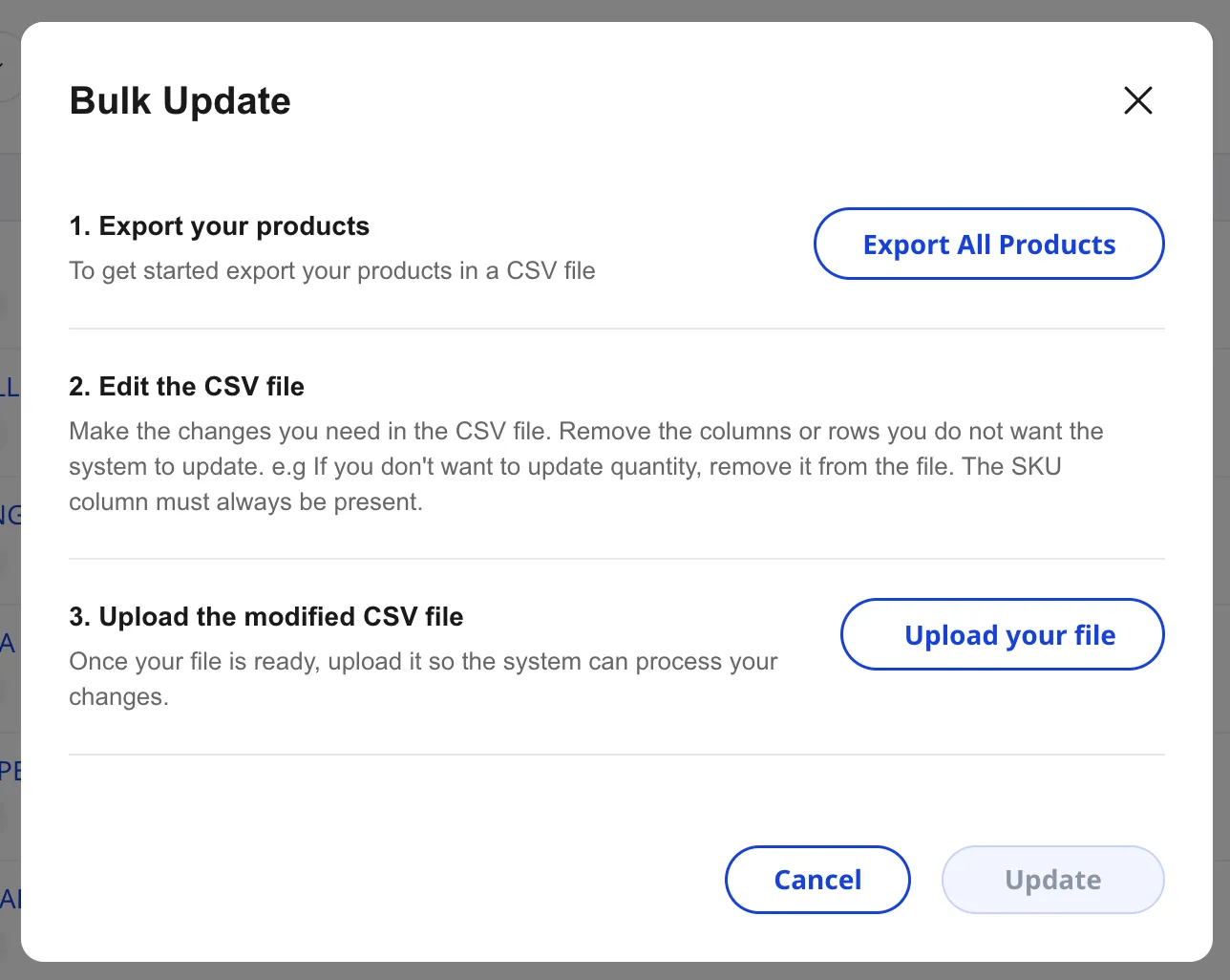
- Click Bulk Update. The Bulk Update modal opens with three numbered steps.
- Click Export All Products to download a CSV of every product currently in your catalogue.
- Edit the file in your spreadsheet editor (covered below), then click Upload your file and pick the saved CSV.
- Wait for Shoopy to validate the file. If the file is clean, the Update button activates. Click it to apply the changes.
A success toast confirms the import has started, and the new on-hand counts roll into the Products list once the background job finishes.
What to put in the CSV — the stock workflow
Shoopy does not give you a blank stock template. Instead, you export your real catalogue and edit it in place, so the CSV starts pre-filled with every product you already have.
For a stock-only update:
- Keep the SKU column. This is how Shoopy matches each row to an existing product. The in-modal note spells it out: “The SKU column must always be present.”
- Keep the quantity column. This is the stock value Shoopy will write back.
- Remove every other column you do not want to change — name, prices, descriptions, categories. Shoopy only updates the columns that survive in your file.
- Edit the quantity values for the rows that need to change; leave rows alone if their stock is already correct.
- Save the file as CSV (not XLSX). Some spreadsheet apps default to XLSX — switch to CSV (UTF-8) on save.
That is the full stock workflow: the file you upload back has just two columns, SKU and quantity.
Validation and error reporting
When you upload the CSV, Shoopy validates it before applying anything.
- A header check confirms the SKU column is present and the quantity column has numeric values.
- A row check flags rows where the SKU does not match a product in your catalogue, where the quantity is non-numeric, or where the row is missing the required key.
- If any rows fail, Shoopy shows an error count and lets you download an error CSV with the bad rows highlighted. Fix those rows in your spreadsheet and re-upload.
- The Update button stays disabled until the file is fully valid. Partial imports are not possible — Shoopy is all-or-nothing on a clean file.
- Once Update is clicked, the import runs as a background job. Large catalogues may take a minute or two — leave the page open until the success toast appears.
What Bulk Update does not do
A few common asks are intentionally outside the Bulk Update tool.
- No per-location stock targeting. The CSV writes to the default / primary location only. If you need to set different counts for different store locations, do those one at a time using the per-row Stock In modal.
- No order deduction. Online and POS orders adjust stock on their own. Do not also Bulk Update for an order — that double-counts.
- No new product creation. This tool only edits SKUs that already exist; unmatched SKUs in the CSV are reported as errors. To add new SKUs, use Bulk product upload via CSV.
- No stock-history log. Bulk Update does not record who changed what or why. Keep a copy of every uploaded file in your operations folder for audit.
- No rollback button. Once the job runs, the new quantities are live. If you uploaded the wrong file, your fix is to upload a corrected file.
Tips for a clean bulk update
- Strip columns aggressively. Shoopy only writes the columns you keep. The safest stock-only file has just SKU and quantity — every other column removed before save.
- Sanity-check before uploading. Sort the spreadsheet by SKU and compare the new values against your stocktake sheet, so typos surface before they hit the catalogue.
- Run a small test first. Try a 5-row file before a 500-row one. If the upload behaves unexpectedly, the blast radius is small.
- Save the source file. Keep a date-stamped copy of every CSV you upload, so you have a record if the team needs to reconcile inventory later.
- For just one or two SKUs, use the row menu. The per-row Stock In / Stock Out modal is faster than exporting and re-uploading.
Troubleshooting
I do not see Bulk Update in the Tools menu
Bulk Update is gated to the higher business plan, so check your subscription page. If your plan supports it, the next likely cause is a Location Admin role — the tool is hidden on location-scoped accounts. Ask the Owner or an Admin to run the import.
The Update button stays disabled after I upload my file
The file failed validation. Look for an error count and download the error CSV. Common causes: the SKU column is missing, a SKU does not match any product in your catalogue, the quantity column has non-numeric values (commas in numbers, blank cells), or the file was saved as XLSX instead of CSV.
My CSV uploaded but stock did not change
Two likely causes. First, the column you wanted to update may have been removed from the file — Shoopy only updates columns present in the upload. Re-export, keep the quantity column, edit, and re-upload. Second, the background job may still be running on a large catalogue. Wait a minute and refresh the Products list.
How do I update stock per location with the CSV?
The Bulk Update CSV writes to the default / primary location only. For per-location adjustments, either run multiple per-row Stock In actions (one per location) or open a support ticket about your specific multi-location workflow.
My quantities went up by my new value instead of being set to it
Bulk Update sets the new value, it does not add to the existing one. If a SKU showed 50 and your CSV said 30, the new on-hand count is 30, not 80. Type the absolute target value, not the delta.
Can I undo a bulk update?
There is no built-in undo. Fix the values in your spreadsheet and upload a corrected CSV. The second upload simply sets the new values — Shoopy does not keep a stack of previous states.
Can Bulk Update create new products?
No — it only edits existing SKUs, and unmatched rows fail validation. For new products see Bulk product upload via CSV.