

Shoopy product bundles and multipacks are two product types built for selling more than one unit at a time. In short, a Bundle groups different items together, and a Multipack sells several units of the same item as one pack. Also, both live next to Simple products in your catalog and share the same admin flow. For a live Shoopy catalog, see www.aziri.in.
For plain single-SKU products, see Adding a product in Shoopy. For option-axis flows like Size or Color, see Shoopy product variants.
Before you begin #
- First, sign in at
web.shoopy.in. For details, see Logging in with OTP. - Also, your role must allow catalog edits. In short, Owner, Admin, Catalog Manager, Marketing Manager, and Billing Manager can create bundles and multipacks.
- However, Location Admins can view but not create or remove these product types.
- Finally, the child products you want to include must already exist as Simple products.
Shoopy product bundles vs multipacks #
The two types look similar but solve different problems.
| Type | What it sells | Example |
|---|---|---|
| Bundle / Kit | Different items sold together | Shampoo + Conditioner + Comb |
| Multipack | Several units of the same item | Pack of 12 of one soap bar |
So, pick Bundle when the box holds different SKUs. Also, pick Multipack when the box holds many copies of one SKU.
When not to use either #
- Different sizes of one product (100g, 250g, 500g) — Use variants on a Simple product. See Shoopy product variants.
- Different colors or flavors — Also variants, not a bundle.
Where Shoopy product bundles and multipacks live #
Both types sit in your main catalog alongside Simple products:
- Open Catalog → Products.
- Use the Product Type filter at the top to show only Bundles or only Multipacks.
- Each row shows a type badge so you can spot them at a glance.
In short, bundles and multipacks are first-class products. They appear in the storefront, in orders, and in reports just like any Simple product.
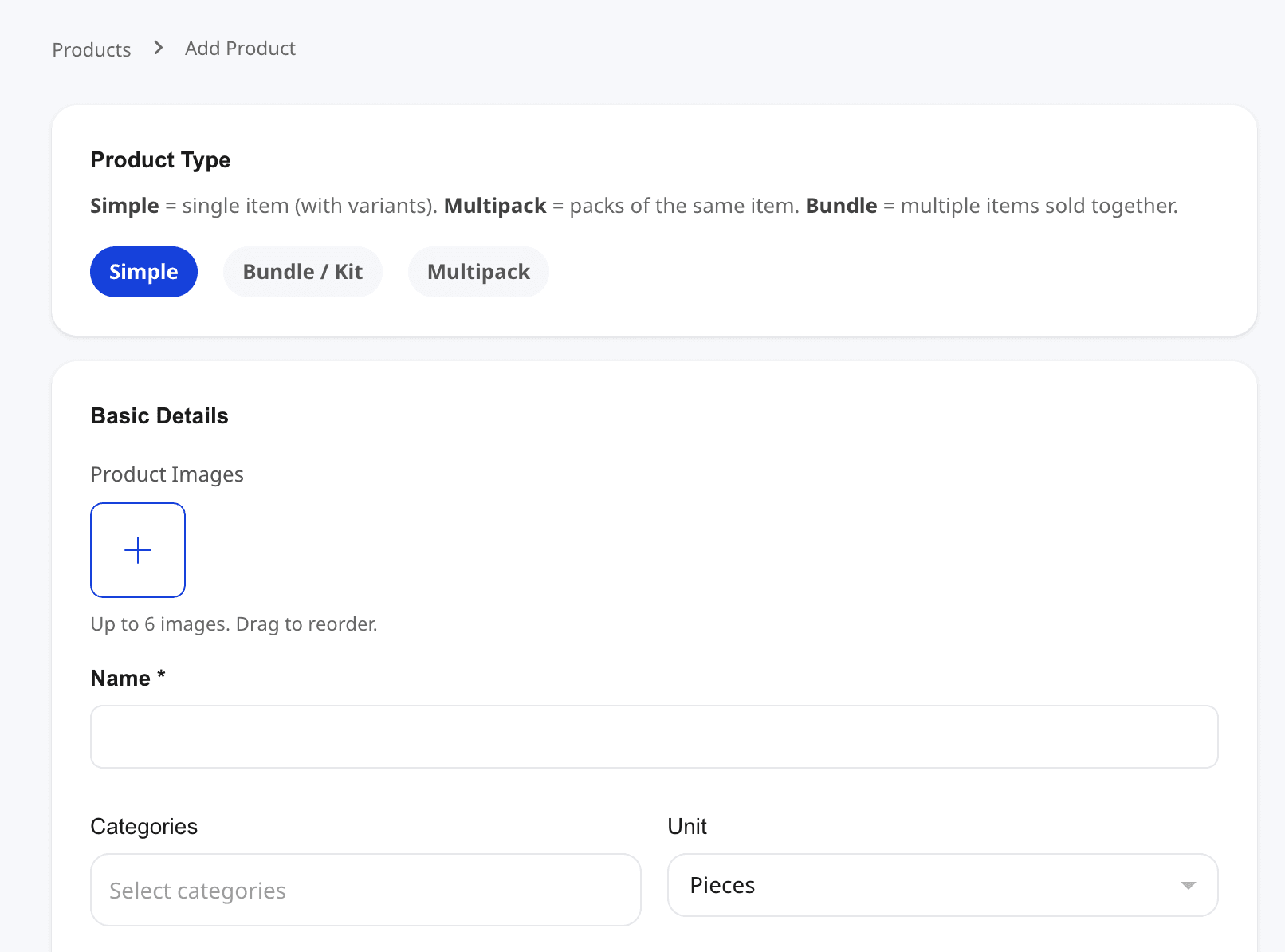
How to add a Shoopy product bundle #
Use a Bundle when you want to sell a set of different items as one SKU.
- Open Catalog → Products and click + Add Product.
- In the Product Type row, pick Bundle / Kit.
- Enter the bundle’s name, images, Sale Price, and MRP.
- Scroll to Components and search for each child product.
- For each child, set Qty — how many of that item are in one bundle.
- If the child has variants, pick which variant SKU is included (or allow a set).
- Click Save Product.
So, a gift set of “1× shampoo, 1× conditioner, 1× comb” becomes one bundle row with three components.
Tip: The Sale Price auto-fills from the sum of child prices × quantity. You can override it for a bundle discount.
Limits and rules for bundles #
- Up to 20 components per bundle.
- Components must be Simple products. In short, you can’t nest a bundle inside a bundle.
- Product Type is locked after save. So, a bundle can’t later become a Simple product.
How Shoopy product bundle pricing and stock work #
Pricing. The bundle’s Sale Price auto-fills as sum(child sale price × quantity). Also, MRP auto-fills the same way. Both fields are editable — so, you can undercut the sum for a bundle discount or round the total.
Stock. Shoopy derives bundle stock from the children. In short, the bundle can only ship as many copies as the weakest child allows.
- Formula: min(child stock ÷ qty per bundle) across all components.
- Example: a bundle with
1× shampoo (stock 10)and2× comb (stock 20)has stockmin(10/1, 20/2) = 10.
Therefore, running out of any one child zeroes the bundle’s stock. So, keep all child products topped up.
How to add a Shoopy multipack #
Use a Multipack when you sell the same item in different pack sizes.
- Open Catalog → Products and click + Add Product.
- In the Product Type row, pick Multipack.
- Search for the base product. In short, this is the single item the pack contains.
- The form auto-fills the name, images, categories, and description from the base product.
- Scroll to Pack Options and add one row per pack size you sell.
- For each pack option, set Pack size, Price, MRP, and an optional Label.
- Click Save Product.
So, a water bottle sold as “Pack of 6”, “Pack of 12”, and “Pack of 24” becomes one multipack with three pack options.
Pack Options inside a multipack #
Each row in Pack Options defines one buyable pack. Shoopy auto-calculates the price as base sale price × pack size, but you can override it to offer bulk savings.
| Field | Required? | Notes |
|---|---|---|
| Pack size | Required | A whole number. For example, 12. |
| Price | Required | Auto-fills as base × size. Editable. |
| MRP | Optional | Auto-fills, toggle to manual if needed. |
| Label | Optional | Defaults to Pack of {size}. |
| Restrict variants | Optional | Limits this pack to chosen variants of the base product. |
So, the storefront shows your pack options as buyable choices. Then, shoppers pick the pack they want and add it to cart.
If the base product has variants #
When the base product has variants (say, Red and Blue shirts), you can point a pack option to specific variants. For example:
- Pack of 12 — Red shirts uses only the Red variant SKU.
- Pack of 12 — Blue shirts uses only the Blue variant SKU.
In short, this lets you sell per-color packs without creating separate products.
How Shoopy multipack pricing and stock work #
Pricing. Each pack option has its own price. Also, the Products list shows the default pack’s price — usually the lowest one.
Stock. Shoopy tracks stock per pack option. Also, the Products list shows Varies if pack options have different stock levels.
So, a multipack with three pack options is three separate stock counts behind the scenes.
Editing a bundle or multipack #
From Catalog → Products:
- Find the row.
- Click the ⋯ menu.
- Pick Edit.
- Change any field and save.
However, the Product Type is locked after the first save. In short, a Bundle stays a Bundle and a Multipack stays a Multipack. So, to change the type, create a new product and retire the old one.
Removing a bundle or multipack #
- From Products, click the ⋯ menu on the row.
- Pick Remove.
- Confirm in the modal.
However, remove with care. Past orders keep a snapshot of the bundle or pack that was bought. But the product disappears from the catalog and live store.
Tips for Shoopy product bundles and multipacks #
- Name bundles clearly. For example, “Hair Care Starter Kit” reads better than “Bundle 1”.
- Keep child products in stock. In short, a bundle is only as strong as its weakest child.
- Use pack labels for multipacks. For example,
Family Pack (12)sells better thanPack of 12. - Offer a small bundle discount. So, the total looks cheaper than buying children separately.
- Set images. Then, bundles get a lifestyle shot and multipacks get a clean pack photo.
Troubleshooting #
I can’t find Bundle or Multipack in the Product Type row #
First, confirm you’re on the Add Product screen, not Add Variant. Also, the Product Type chips appear only when creating a new product. In short, Product Type is locked after save.
My bundle shows stock 0 even though children are in stock #
One or more components is below the required qty. For example, a bundle that needs 2× comb needs at least 2 combs in stock. Therefore, open the child product and raise the stock.
My multipack price auto-calculated but I want a bulk discount #
Click the Price field on that pack option and type the discounted amount. In short, the auto-calculation is a starting point, not a lock.
I added a variant to a multipack pack option but the storefront shows the wrong color #
Open the pack option, check Restrict variants, and confirm only the intended variant SKU is ticked. So, unchecked SKUs won’t ship.
I deleted a child product and my bundle broke #
Past orders keep the snapshot, but the bundle now references a missing item. Therefore, open the bundle, remove the stale component, and add the replacement.
Related articles #
- Adding a product in Shoopy
- Shoopy product variants
- Pricing, MRP, tax, and HSN in Shoopy
- Product images and video in Shoopy
- Glossary of Shoopy terms
Category: Products & Catalog · Author: Shoopy Team · Last reviewed: 2026-04-23