

The Shoopy add product flow is how you list a new item on your store. In short, you open Catalog → Products, click Add Product, pick a product type, fill a short form, and save. Also, the Shoopy add product form guides you with a live Readiness checklist. For a live catalog built with these flows, see www.aziri.in.
To add variants after the product is live, see Shoopy product variants. For the admin layout, see A tour of the Shoopy admin panel.
Before you begin #
- First, sign in at
web.shoopy.in. For details, see Logging in with OTP. - Also, your role must allow catalog edits. In short, Owner, Admin, Catalog Manager, Location Admin, Billing Manager, and Marketing Manager can add products.
- Finally, new terms? Then, check the Glossary of Shoopy terms.
Where to find Shoopy add product #
From the sidebar, click Catalog → Products. So, the product list opens. Then, click the Add Product button at the top-right. As a result, the form opens on a new screen.
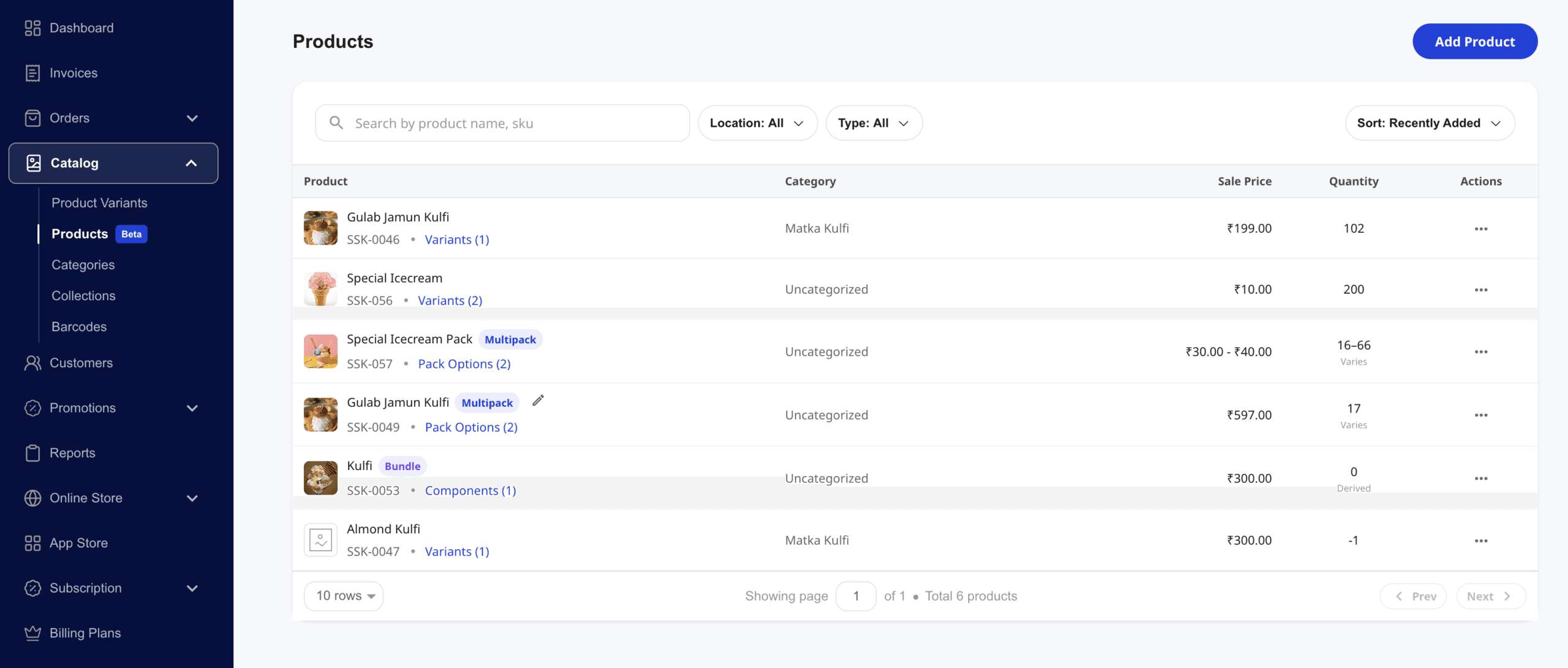
Pick a product type first #
The Shoopy add product form starts with a Product Type selector. So, pick the type that matches your item:
- Simple — A single item, optionally with variants. For example, a tee in three sizes. This is the default and covers most products.
- Bundle / Kit — Multiple different items sold together as one unit. For example, a hamper with three distinct products.
- Multipack — Packs of the same item. For example, a “box of 12” version of a single product.
Also, you can change the type later by editing the product. However, picking the right type upfront keeps the catalog clean.
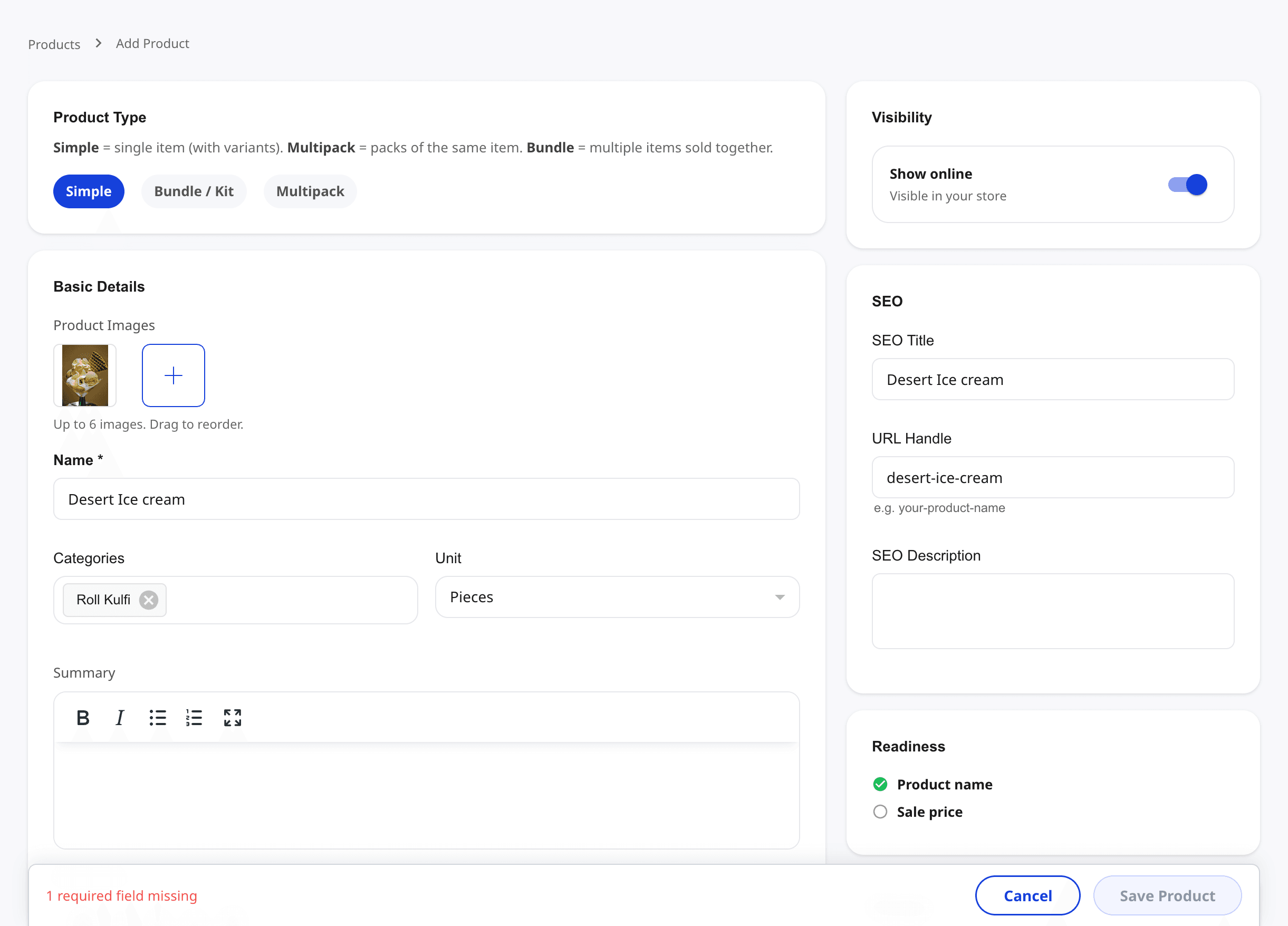
Layout of the Shoopy add product form #
The form uses a two-column layout:
- Left column: Basic Details — Images, Name, Categories, Unit, Summary, and Description.
- Right column: Visibility, SEO, and Readiness — Show-online toggle, SEO fields, and a live checklist of what’s left to fill.
In short, scroll the left column for the product itself and glance right for status.
Required fields for Shoopy add product #
Only two fields are required:
| Field | Type | Notes |
|---|---|---|
| Name | Text | The display name shoppers see. Marked with an asterisk. |
| Sale Price | Number | The price customers pay. Uses your store currency. |
So, the Readiness card on the right ticks each item as you fill it. Also, the footer shows “1 required field missing” until all are in. Finally, the Save Product button stays disabled until Readiness is green.
Basic Details #
The Basic Details card holds the core information:
- Product Images — Up to 6 images by default; higher plans allow more. Also, drag thumbnails to reorder. The first image is the main shot.
- Name (required) — Short and searchable. For example, “Gulab Jamun Kulfi”.
- Categories — Click to pick one or more. Selected categories appear as chips.
- Unit — Dropdown of measuring units like Pieces, Kg, or Litre.
- Summary — A short one-or-two-line pitch for the product.
- Description — Full rich-text story. Also, a Generate button can draft it from the Name.
Pricing in the Shoopy add product form #
Pricing has three related fields:
- Sale Price (required) — What the shopper pays.
- MRP (optional) — List price, shown crossed out. Shoopy enforces MRP ≥ Sale Price.
- Purchase Price (optional) — Your cost price, for margin reports. It is not shown to shoppers.
Also, a Tax-inclusive toggle sits next to Sale Price. So, flip it if your price already includes tax.
For tax rules and HSN codes, see Pricing, MRP, tax, and HSN in Shoopy.
Inventory and identifiers #
These fields are optional but useful:
- Quantity — Stock count for this product.
- Barcode — Scan-ready code for your POS.
- HSN — Tax classification code (India).
- Brand — Helpful for shopper filters and SEO.
- Weight — Used by shipping rules to compute rates.
- Min / Max Quantity — Cap how many a shopper can buy at once.
- Dimensions (L×W×H, cm) — Used by shipping rates.
Some fields appear only if your store settings enable them. So, if you don’t see Brand or HSN, your store may have them turned off.
Visibility and SEO on the Shoopy add product form #
The right column holds two small but important cards:
Visibility #
- Show online — Toggle on to publish the product on your storefront. Also, off hides it even after save.
SEO #
- SEO Title — The tab title shown by Google. If left blank, Shoopy uses the product name.
- URL Handle — The slug in the product URL. For example,
desert-ice-cream. Also, Shoopy pre-fills this from the Name. - SEO Description — The meta description Google shows in results.
In short, a good SEO Title plus a tight SEO Description lifts your product in search. For a deeper SEO guide, see Shoopy product SEO.
The Readiness checklist #
The Readiness card on the right is your live pre-save checklist. So, each required field ticks green as you fill it:
- ✅ Product name — ticks when you type a Name.
- ○ Sale price — ticks when you set a Sale Price.
In short, watch this card to know when Save Product will unlock. Also, the form footer says “1 required field missing” until every Readiness item is green.
Save and what happens next #
Click Save Product. So, Shoopy creates the item and returns you to the Products list. Then, your new product appears at the top of the list with its type badge.
After save, you can:
- Open the product to edit any field.
- Add variants (like size or color) via the variant editor. See Shoopy product variants.
- Clone the product for similar items. See Cloning products in Shoopy.
- Toggle Show online from the product page to hide or publish.
Plan-gated fields #
A few Shoopy add product fields are tied to plan tier:
| Field | Plan required |
|---|---|
| Youtube URL (video) | Basic and above |
| Payment Mode (COD/Prepaid override) | Professional and above |
If you see a “Paid” badge next to a field, your plan doesn’t include it. So, upgrade from Account → Plans to unlock it.
Tips #
- Pick the product type first. In short, switching later takes extra clicks.
- Use the Readiness card as your guide. So, you know exactly what’s missing.
- Set MRP and Sale Price together. Then, shoppers see a clear discount.
- Use short names. For example, “Kulfi Malai 100ml” beats “Our Special Malai Kulfi 100ml Pack of One”.
- Edit the URL Handle for better SEO. Also, pre-filled slugs work fine, but shorter ones rank cleaner.
Troubleshooting #
The Save Product button stays disabled #
First, check the Readiness card on the right. Then, fill whichever items show ○. In short, Name and Sale Price are always required.
My product isn’t showing on the storefront #
In short, the Show online toggle in the Visibility card may be off. So, turn it on and save. Also, newly added products can take a minute to appear on the live store.
I can’t see fields like Brand or HSN #
Your store settings have those fields turned off. Therefore, ask your owner to enable them under Settings → Catalog.
I don’t see the Add Product button #
Your role may lack catalog permission. So, ask the store owner to assign a catalog-capable role under Online Store → Users & Roles.
I picked the wrong product type #
Open the product and switch the type from the edit view. However, some type switches (e.g., Simple → Bundle) may ask you to re-map details. So, pick carefully the first time.
Related articles #
- Shoopy product variants
- Pricing, MRP, tax, and HSN in Shoopy
- Creating and nesting categories in Shoopy
- Cloning products in Shoopy
- Shoopy product SEO
- Glossary of Shoopy terms
Category: Products & Catalog · Author: Shoopy Team · Last reviewed: 2026-04-23